
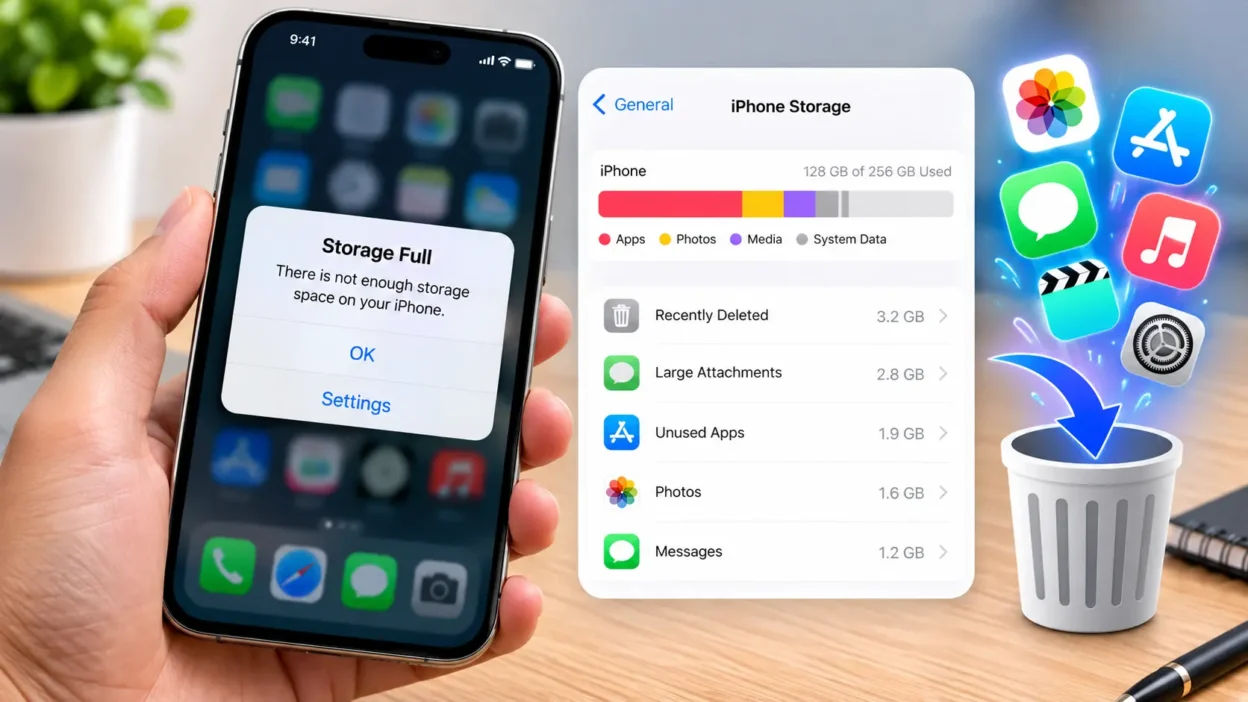
Your iPhone freezing on a photo, refusing an update, or flashing “Storage Almost Full” is annoying — but it’s fixable in minutes, not hours. Here’s exactly what to delete first, what’s safe to ignore, and how to stop it happening again.
| Quick Answer To clear storage on your iPhone right now, go to Settings > General > iPhone Storage, then offload apps you don’t use, delete old photos and videos, turn on “Optimise iPhone Storage,” and clear Safari’s cache. Most people free up 2-10GB in under ten minutes, without deleting anything they actually need. |
Why Does Your iPhone Storage Fill Up So Fast?
Every photo burst, voice note, application update, and cached webpage eats away at your storage. You might know that, but you probably do not realize how many things contribute to this. The usual suspects are large photo and video libraries, apps you downloaded that you no longer use, message threads full of images and GIFs, and browser caches that grow in the background.
None of these things means your iPhone is dying, or that it is just a “newer phone” problem. A 2019 iPhone and a 2026 iPhone fill up for the same reasons. You are just creating more data with a better camera and more apps than you used to.
How to Check Your iPhone Storage in 10 Seconds
Before you delete anything, see what’s actually taking up the space:
- Open Settings.
- Tap General, then iPhone Storage.
- Wait a few seconds for the coloured bar to load — this breaks storage down by app, photos, messages, and system data.
- Scroll down to see every app ranked by size, along with the date you last opened it.
This screen also shows built-in recommendations, like offloading unused apps or reviewing large attachments — tap any suggestion to act on it straight away.
7 Quick Ways to Clear Storage on Your iPhone
1. Offload apps you don’t use
Deleting an application removes its icon and files but leaves your saved data intact. This means that if you return to the program in the future, all your data will be there, just as you left it. To delete an app, go to Settings – General – iPhone Storage, find the application you want to delete, and select “Offload App.” Delete all the applications you haven’t used for two months or more.
2. Delete duplicate and blurry photos
Photos and videos are the biggest storage users on most phones. Open the Photos app, tap Albums, and check “Duplicates” and “Recently Deleted” — the Photos app flags near-identical shots automatically, so you can clear a burst of ten photos down to your favourite one in a few taps.
3. Turn on iCloud Photos with Optimise Storage
Go to Settings > [your name] > iCloud > Photos, turn on iCloud Photos, and choose “Optimise iPhone Storage.” Your full-resolution photos will go into iCloud, while taking up less space on your phone. You can hardly tell the difference between the two photos when editing.
4. Clear Safari’s cache and website data
Go to Settings > Safari > Clear History and Website Data. This wipes saved browsing data, cookies, and cached pages, which can free up a surprising amount of space if you browse a lot on your phone.
5. Delete large message attachments
Go to Settings > General > iPhone Storage > Messages. Here you will be able to see how many photos, videos, GIFs, and stickers you have sent via iMessage. Tap review large attachments to delete the largest ones without having to go through your entire message history.
6. Remove downloaded music, podcasts, and offline shows
Streaming services like Spotify, Apple Music, and Netflix allow you to download videos or songs to listen or watch offline. It is always a good idea to check each app’s downloads section and delete anything you’ve already watched or listened to.
7. Empty “Recently Deleted” folders
Deleted photos and voice memos don’t actually get deleted immediately; they remain on your phone inside the Recently Deleted folder for weeks before being permanently purged. Open Photos ➝ Albums ➝ Recently Deleted ➝ Select ➝ Delete All to remove them right away (or wait until they’re deleted automatically).
Storage Still Won’t Clear? Try This
- There are relatively straightforward ways of getting rid of most of your iPhone’s storage. Navigate to your iPhone Storage screen, use the Offload option on apps that you barely use, make sure your photo library is backed up to iCloud, and clear your Safari cache. If you do this routinely once every month or so, you might not have to worry about your storage space being low.
How Much iPhone Storage Do You Actually Need?
If you’re clearing storage constantly, it might be worth planning ahead for your next upgrade instead of fighting the same battle every month:
| Storage size | Best for |
|---|---|
| 64GB | Light users — messaging, calls, and a handful of social apps |
| 128GB | Most people — a normal photo library plus everyday apps |
| 256GB | Heavy photographers, gamers, or anyone with a large app collection |
| 512GB+ | 4K video creators and anyone keeping large offline music or film libraries |
The Bottom Line
Clearing iPhone storage is not a mystery as long as you know what to do. Get to know the iPhone Storage screen, offload the apps you do not use often, back up your photo library to iCloud, and clear the Safari cache. Do it monthly, and you will never see the iPhone storage full message.
Frequently Asked Questions
Why does my iPhone say storage full when I still have space left?
This usually happens because of hidden system data — cached files, temporary app data, and old message attachments that don’t show up clearly in the storage list. Restarting your phone and updating to the latest iOS version often clears this hidden buildup within a few minutes.
How do I clear “Other” storage on my iPhone?
“Other” storage is mostly system files, caches, and corrupted downloads. Offload unused apps, clear Safari’s history and website data, or back up and reset your iPhone as a last resort — a full backup and restore clears out old system clutter that builds up over time.
Does deleting an app also delete my data?
Deleting an app removes both the app and its data. Offloading an app instead removes just the app itself while keeping your documents and settings, so everything is there when you reinstall it later from the App Store.
Will turning on iCloud Photos delete my photos from my iPhone?
No. iCloud Photos keeps your full-resolution originals safely in iCloud while storing smaller, space-saving versions on your iPhone when you turn on “Optimise iPhone Storage.” You can still view, edit, and share every photo as normal.
How much storage do I actually need on an iPhone?
64GB suits light users who mainly use messaging and social apps. 128GB works for most people with a normal photo library. 256GB or more is better if you shoot a lot of 4K video, download offline music and movies, or keep a large app collection.
Further Reading
Apple Support — How to check the storage on your iPhone, iPad, and iPod touch
Apple Support — Set up and use iCloud Photos
MacRumors — 20+ Ways to Free Up iPhone Storage